
To ensure optimal email deliverability and satisfy modern mailbox provider requirements, four DNS records are essential: MX (for routing), SPF (sender authorization), DKIM (cryptographic authentication), and DMARC (policy enforcement and alignment). For dedicated senders, PTR (Reverse DNS) and BIMI provide secondary authentication and brand visibility.
When clients come to us wondering why their business emails are suddenly landing in spam or bouncing outright, it is rarely random bad luck. Deliverability issues almost always trace back to missing, fragmented, or conflicting DNS zone configurations. Major inbox providers like Google, Yahoo, and Microsoft have tightened their infrastructure standards. Settings that were treated as optional best practices a few years ago are now strict gatekeepers. If your sending domain does not explicitly validate identity and authorization in DNS, receiving mail transfer agents (MTAs) will treat your outbound messages with suspicion.
Below is the complete architectural guide to setting up every essential and advanced email DNS record, including concrete syntax examples, common traps we encounter in the field, and the exact diagnostic workflow we use to audit domain health.
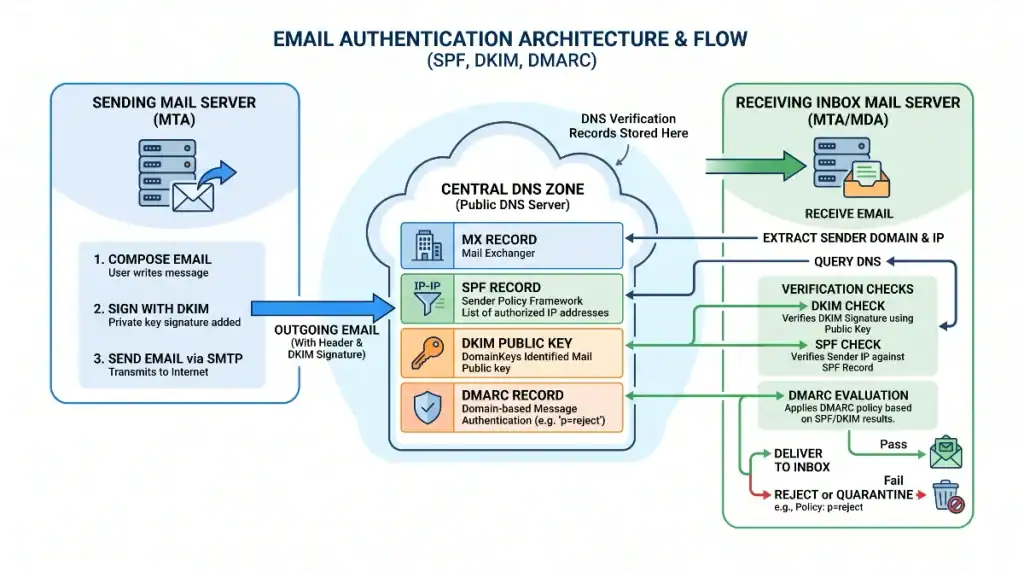
MX Records (Mail Exchange)
An MX record tells the internet where to deliver incoming mail sent to your domain name by pointing to your mail server hostnames.
While many domain owners assume MX records only matter for receiving email, they directly impact outbound reputation. Receiving mail servers routinely perform DNS callback lookups against your domain’s MX records when evaluating inbound messages. If your domain has no valid MX records, the recipient server cannot send back a delivery status notification or bounce report. Most modern spam filters will immediately downgrade your reputation score or drop the connection entirely if an active MX record is absent.
Concrete Record Syntax
- Record Type: MX
- Record Name: @ (or your root domain)
- Priority: 10
- Record Value / Data: mail.example.com (or your provider hostname, such as ASPMX.L.GOOGLE.COM)
Configuration Notes
When configuring MX records in your DNS zone file, your provider will often provide multiple server hostnames paired with priority numbers. Lower priority values take precedence over higher values. If you are managing your zone file through our server hosting control panel or VPS management portal for enterprise server hosting, ensure that any default placeholder MX records from initial server provisioning are removed to avoid split-delivery routing issues.
SPF (Sender Policy Framework)
An SPF record is a TXT record that defines the exact mail servers, hostnames, and IP addresses authorized to transmit email on behalf of your domain.
Once basic mailbox setup issues are resolved, a missing SPF record is the single most common reason outbound mail fails to reach the inbox. Without SPF, an unauthorized server can easily spoof your domain in the envelope sender address. With SPF published, receiving servers cross-reference the connecting IP address against your published record to confirm authorization.
Concrete Record Syntax
- Record Type: TXT
- Record Name: @ (or root domain)
- Record Value / Data: v=spf1 include:_spf.google.com ~all
Common Traps and Multi-Sender Gotchas
A frequent trap is creating multiple SPF records. The SPF specification strictly mandates that a domain must have only one TXT record beginning with v=spf1. If you configure one SPF record for Google Workspace or Microsoft 365, and then create a second separate TXT record for an email platform like Mailchimp or transactional website form notifications, both records become invalid. Receiving servers will flag this as a PermError (Permanent Error) and fail validation.
Another common oversight occurs when launching an email campaign through a third-party platform without updating the existing SPF string. Always consolidate all authorized senders into a single TXT entry before launching a campaign:
- Invalid (Multiple Records): Two separate records with v=spf1 include:_spf.google.com ~all and v=spf1 include:servers.mcsv.net ~all
- Valid (Merged Record): One unified record with v=spf1 include:_spf.google.com include:servers.mcsv.net ~all
Keep in mind that SPF has a hard limit of 10 DNS lookups across all mechanisms and nested includes. Exceeding this limit also produces a PermError, which is why monitoring your includes is essential.
DKIM (DomainKeys Identified Mail)
DKIM uses asymmetric cryptography to attach a digital signature to the headers of your outgoing emails.
When your mail server transmits a message, it signs the headers using a private key stored securely on the server. The receiving mail server retrieves the public key published in your domain’s DNS to verify that digital signature. This process confirms that the message genuinely originated from an authorized system for your domain and ensures that the message body and headers were not altered or tampered with in transit.
Concrete Record Syntax
- Record Type: TXT
- Record Name: selector1._domainkey (where selector1 is the custom selector assigned by your mail platform)
- Record Value / Data: v=DKIM1; k=rsa; p=MIIBIjANBgkqhkiG9w0BAQEFAAOCAQ8AMIIBCgKCAQEA…
Generating and Publishing Keys
DKIM keys are generated directly inside your email hosting administration console. Your provider generates a public and private key pair, assigning a unique selector that routes receiving servers to the correct TXT record. If your DNS provider limits TXT string lengths to 255 characters, 2048-bit DKIM keys must be split into quoted segments within the single record string, or entered through our server configuration management console where automatic string chunking is handled for you.
DMARC (Domain-based Message Authentication, Reporting, and Conformance)
DMARC builds directly upon SPF and DKIM. It gives domain owners the power to specify how receiving mail servers should treat messages that fail SPF and DKIM authentication checks, while supplying daily XML aggregate reports detailing sending activity.
DMARC is no longer an optional security enhancement. Major providers require it for bulk senders, making it the primary entry point when auditing domain deliverability. However, many site owners pick the wrong policy level right away, either adopting an ineffective policy or an overly aggressive one that accidentally drops business-critical transactional mail.
Concrete Record Syntax
- Record Type: TXT
- Record Name: _dmarc
- Record Value / Data: v=DMARC1; p=none; rua=mailto:dmarc-reports@example.com
The Phased Rollout Strategy
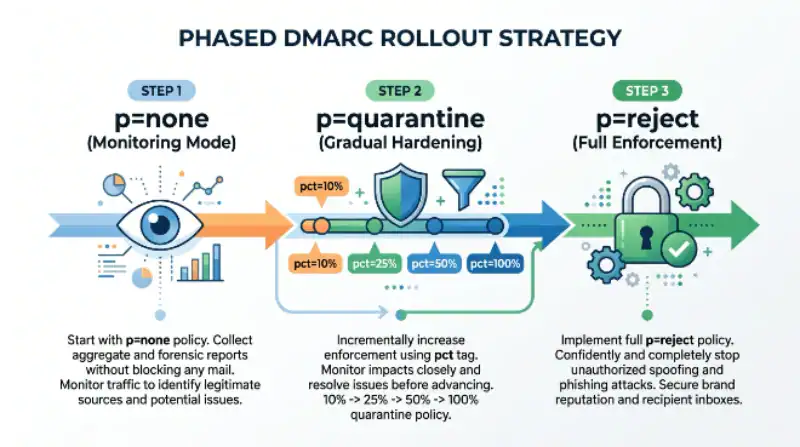
To prevent disruption to corporate email, customer service desks, and website form notifications, we advocate a disciplined, phased rollout across three policy levels:
Policy None (p=none)
This is pure monitoring mode. The receiving server delivers the message normally even if authentication fails, while generating an aggregate XML report sent to your rua email address. If you have a small administrative team or an unmapped web stack with multiple external notification services, this stage lets you gather baseline data and resolve authentication errors without impacting operations.
Policy Quarantine (p=quarantine)
Quarantine instructs receiving servers to isolate failing messages by routing them into spam, junk, or quarantine folders instead of discarding them. Do not jump straight from monitoring to outright rejection. Instead, combine quarantine with the pct (percentage) tag to gradually harden enforcement over several weeks:
- Record Value / Data: v=DMARC1; p=quarantine; pct=10; rua=mailto:dmarc-reports@example.com
Starting at pct=10 applies quarantine to just 10% of failing messages. You can monitor inbox deliverability, pause to fix any misconfigured sending services uncovered in your aggregate reports, and progressively dial up the percentage to 25, 50, and 100 as compliance stabilizes.
Policy Reject (p=reject)
A reject policy instructs receiving mail servers to drop and discard any message failing both SPF and DKIM alignment. This is the gold standard for stopping brand impersonation, spoofing, and phishing attacks. However, it should only be deployed as a final milestone once your aggregate reports prove that 100% of your legitimate outbound traffic consistently passes authentication.
PTR & BIMI (Advanced Deliverability & Verification)
Once your core records are working smoothly, dedicated senders should configure advanced DNS records to strengthen reputation and brand trust.
PTR Records (Pointer / Reverse DNS)
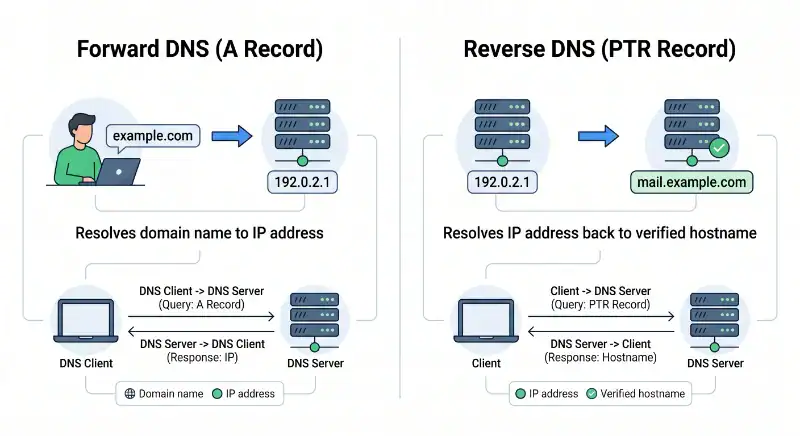
Standard forward DNS maps a domain name to an IP address. Reverse DNS performs the exact opposite action: it takes your mail server’s public IP address and resolves it back to a verified domain hostname.
If you send email from a dedicated server, VPS instance, or private mail cluster, a matching PTR record is mandatory. Major mailbox providers check whether the connecting IP address matches the reverse DNS hostname. If the PTR record is absent, mismatched, or resolves to a generic ISP address like 192-168-1-1.dynamic.isp.com, messages will either be routed to spam folders or rejected during initial SMTP handshakes.
- Record Type: PTR
- Record Name: 100.1.168.192.in-addr.arpa (representing IP address 192.168.1.100)
- Record Value / Data: mail.example.com
You cannot create a PTR record in your standard domain registrar’s DNS editor. Because PTR records belong to the network owner of the physical IP block, you must set this up through your server hosting provider, VPS management console, or ISP network administrator.
BIMI (Brand Indicators for Message Identification)
BIMI is an emerging standard that allows authenticated senders to display their official corporate logo directly inside supported email clients like Gmail and Apple Mail, right next to the sender name.
BIMI relies on strict underlying security: your domain must already enforce a DMARC policy of p=quarantine (at 100%) or p=reject. Once compliant, you publish an SVG version of your logo along with an optional Verified Mark Certificate (VMC) issued by an authorized certificate authority.
- Record Type: TXT
- Record Name: default._bimi
- Record Value / Data: v=BIMI1; l=https://example.com/bimi-logo.svg; a=https://example.com/bimi-cert.pem;
BIMI provides immediate visual verification to recipients, boosts open rates, and confirms that your domain satisfies the strictest security thresholds in modern email.
Practical Deliverability Troubleshooting Workflow
When email delivery suddenly drops, avoid the temptation to make hasty, speculative changes to your live zone files. Follow this systematic three-stage audit to diagnose the root cause:
Step 1: Scope the Delivery Failure
Before editing any DNS records, determine whether the breakdown is universal or isolated:
- Is the failure happening across all outbound mail, or only when sending to specific mailbox providers like Gmail, Yahoo, or Outlook?
- Are personal team emails from Outlook or Google Workspace failing, or is the issue restricted to transactional notifications sent from WordPress, WooCommerce, or web application forms?
Isolating the issue prevents you from reconfiguring your entire domain’s DNS when the real cause might be a single missing SMTP plugin or an outdated API credential on your web server.
Step 2: Query DNS Configuration via Terminal
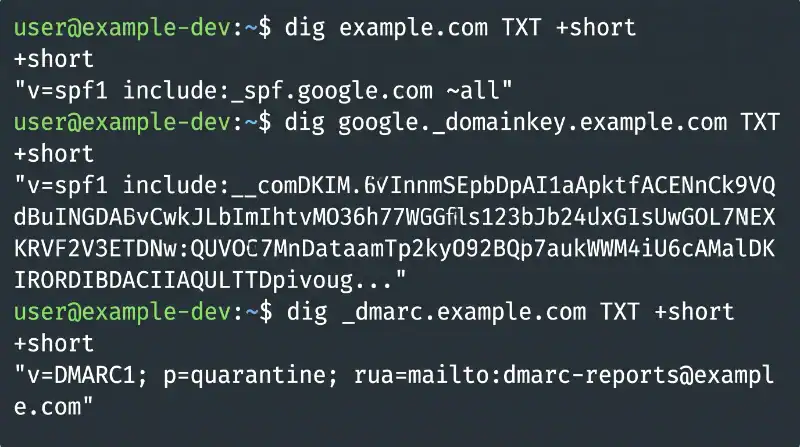
Before spending hours digging through dense mail server access logs, inspect your active public DNS zone records using direct terminal lookups with the dig utility:
- Check MX records: dig example.com MX +short
- Check SPF records: dig example.com TXT +short
- Check DKIM records: dig selector1._domainkey.example.com TXT +short
- Check DMARC records: dig _dmarc.example.com TXT +short
- Check Reverse DNS (PTR): dig -x [Your_Sending_IP] +short
Querying DNS directly from the command line cuts through local cache delays and shows you immediately whether a DMARC syntax error exists, an SPF string was overwritten, or a PTR record was left unassigned.
Step 3: Inspect Raw Headers
If your DNS records appear intact, obtain the raw RFC822 message headers from an email that encountered delivery issues. Have the recipient or sender export the original .eml or .msg file.
A screenshot of an error alert is rarely sufficient for deep troubleshooting. The raw headers contain the Authentication-Results field written by the receiving server, providing explicit pass, neutral, or fail statuses for SPF, DKIM, and DMARC alignment. Reviewing these headers eliminates ambiguity and tells you precisely which authentication check broke down.
If you host your servers or applications with us and need help assigning PTR records, splitting 2048-bit DKIM keys, or auditing your SPF strings, reach out to our server administration and hosting support team for hands-on zone file assistance.
Get your email delivered
Properly configuring DNS records is only half the battle; continuously auditing zone files, managing key rotations, and monitoring DMARC aggregate reports requires vigilant oversight. If you would rather focus on running your business while seasoned infrastructure engineers ensure your emails, servers, and web applications run without interruption, partner with our team. Explore our full suite of proactive server management solutions and book a call with our team to let us handle your DNS optimization, server maintenance, and infrastructure health from end to end.